In this tutorial we take one month through Nuits Receipts from start to finish, using synthetic sample files. We add two receipts, check them, import a bank statement, see a payment matched to its receipt, download the month’s ZIP and mark it as sent. Then we find one of the receipts again on Home.
At the end, September 2026 in your copy shows Sent, you have the ZIP your accountant would receive, and you know where every document waits for you later.
You need a copy of the app you can sign in to. If you do not have one yet, follow Deploy your own copy first.
Get the sample files
The sample files are in the repository, in scripts/sample-receipts/. Download these three to your computer:
sample.pdf: a receipt from Sample Cloud Lantern Oysample.png: a photo-style receipt from Sample Pixel Harbor Ltdbank.csv: a bank statement with two payments out
None of them is real financial data. Both receipts are dated September 2026, so that is the month we work on.
These are the values printed on the two receipts. We check the app’s reading against them in a moment.
| Field | sample.pdf |
sample.png |
|---|---|---|
| Seller | Sample Cloud Lantern Oy | Sample Pixel Harbor Ltd |
| Receipt number | SAMPLE-1001 | SAMPLE-1002 |
| Date | 4 Sep 2026 | 5 Sep 2026 |
| Currency | EUR | USD |
| Before VAT | 100.00 | 20.00 |
| VAT % | 25.5 | 0 |
| VAT amount | 25.50 | 0.00 |
| Total | 125.50 | 20.00 |
Add the receipts
Sign in to your copy. A new copy opens on Welcome: a Finish setting up list, and under it the Add form, which asks What are these? You can finish setting up later.
The same form is behind the Add button, which sits in the same place on every page: first in the sidebar on a computer, and the round button in the middle of the tab bar on a phone.
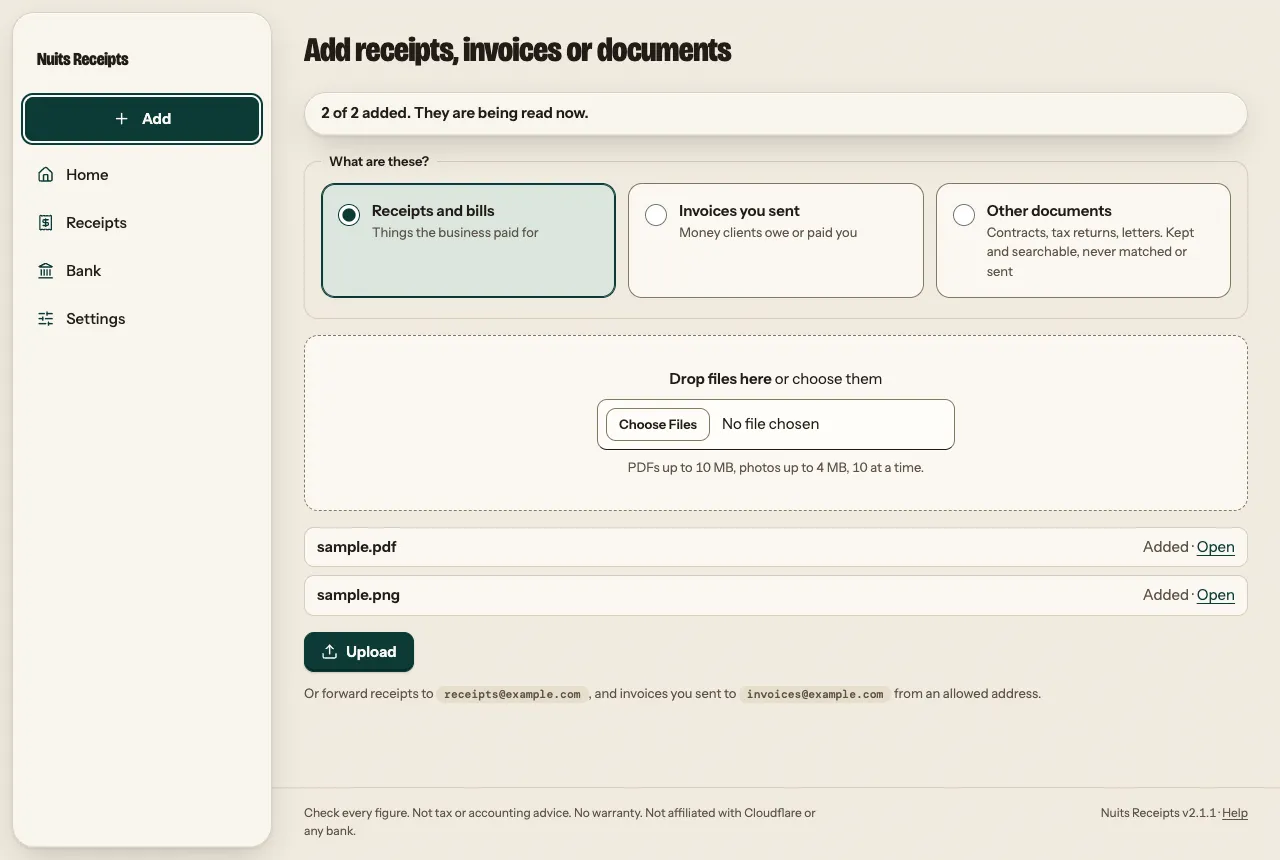
- Under What are these?, leave Receipts and bills selected.
- Choose
sample.pdfandsample.pngtogether, or drop both on Drop files here. - Press Upload.
Each file shows Added · Open, and the form says 2 of 2 added. They are being read now.
Check each receipt
Press Receipts in the sidebar (on a phone, in the tab bar). It opens on To do, beside All. To do lists the receipts the app wants you to check, each marked Needs you. Press Start checking at the top of the page. Its number is how many receipts are waiting.
The receipt page shows the original beside what the app read. What it needs from you comes first, one short question per field, under a heading such as 2 fields to fill. The values it read itself are under Already filled in. The bar at the bottom says where you are, for example 1 of 1 to check, and holds Approve receipt.
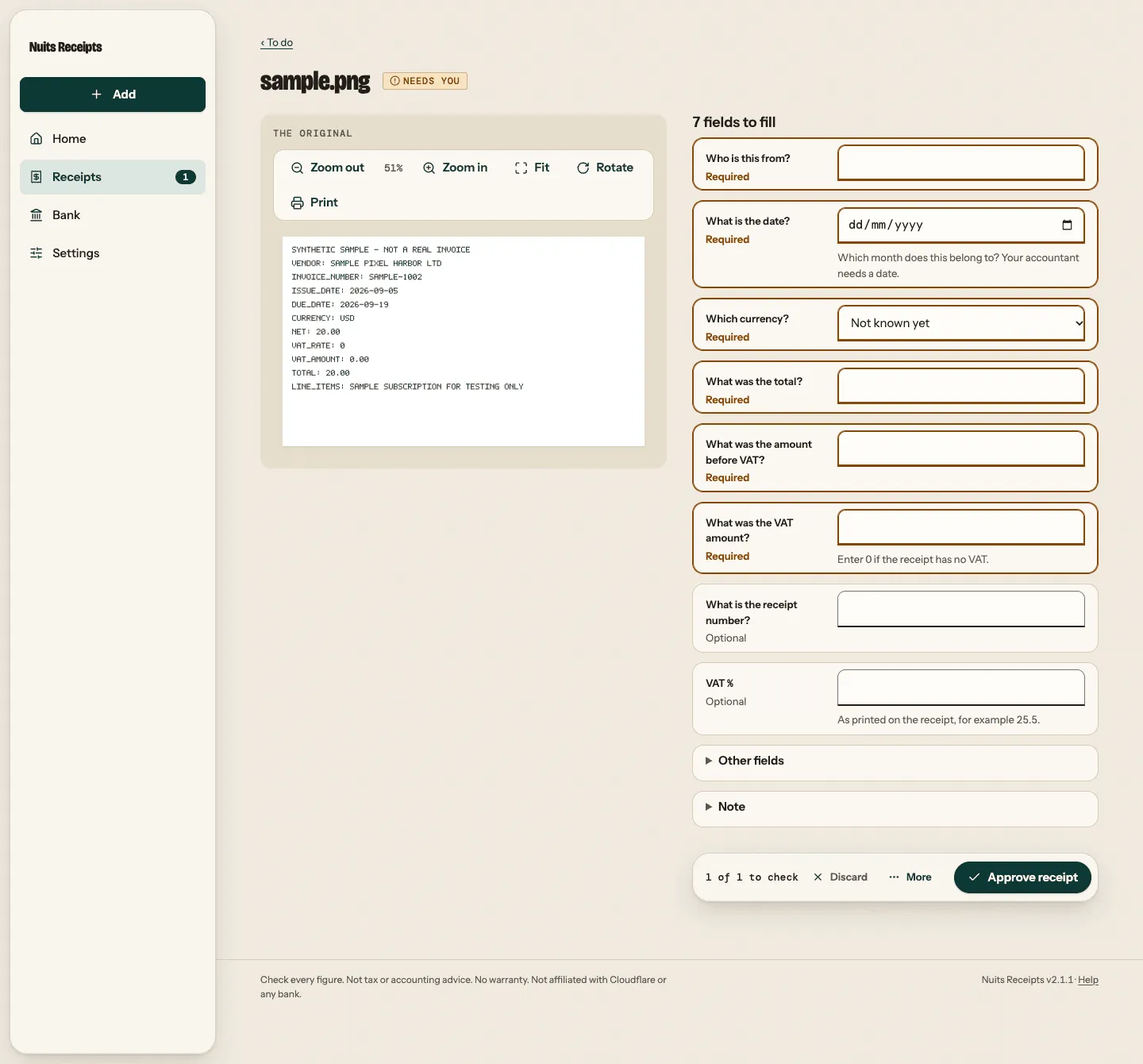
The screenshot comes from a local copy, which reads nothing from the image, so it asks for every field. Your copy asks only for what it could not read.
For each receipt:
- Compare every field with the table above. Fill in anything that is empty and correct anything that differs. If the page asks Which currency?, pick the currency from the table. The fields it did not ask about are under Other fields.
- Leave Kind under Other fields as it is.
- Leave the Note as it is. It already says Checked against the original.
- Press Approve receipt.
Approve receipt opens the next receipt to check, with a banner such as Approved Sample Cloud Lantern Oy. and an Undo button. Undo puts the receipt back as it was, in case you pressed too soon.
After the last one you are back on To do, which says Nothing to do. The banner says Every receipt is checked. Next, add September’s bank statement. with an Import statement link.
For the USD receipt, Other fields also shows its euro amount, converted at the ECB reference rate.
Import the bank statement
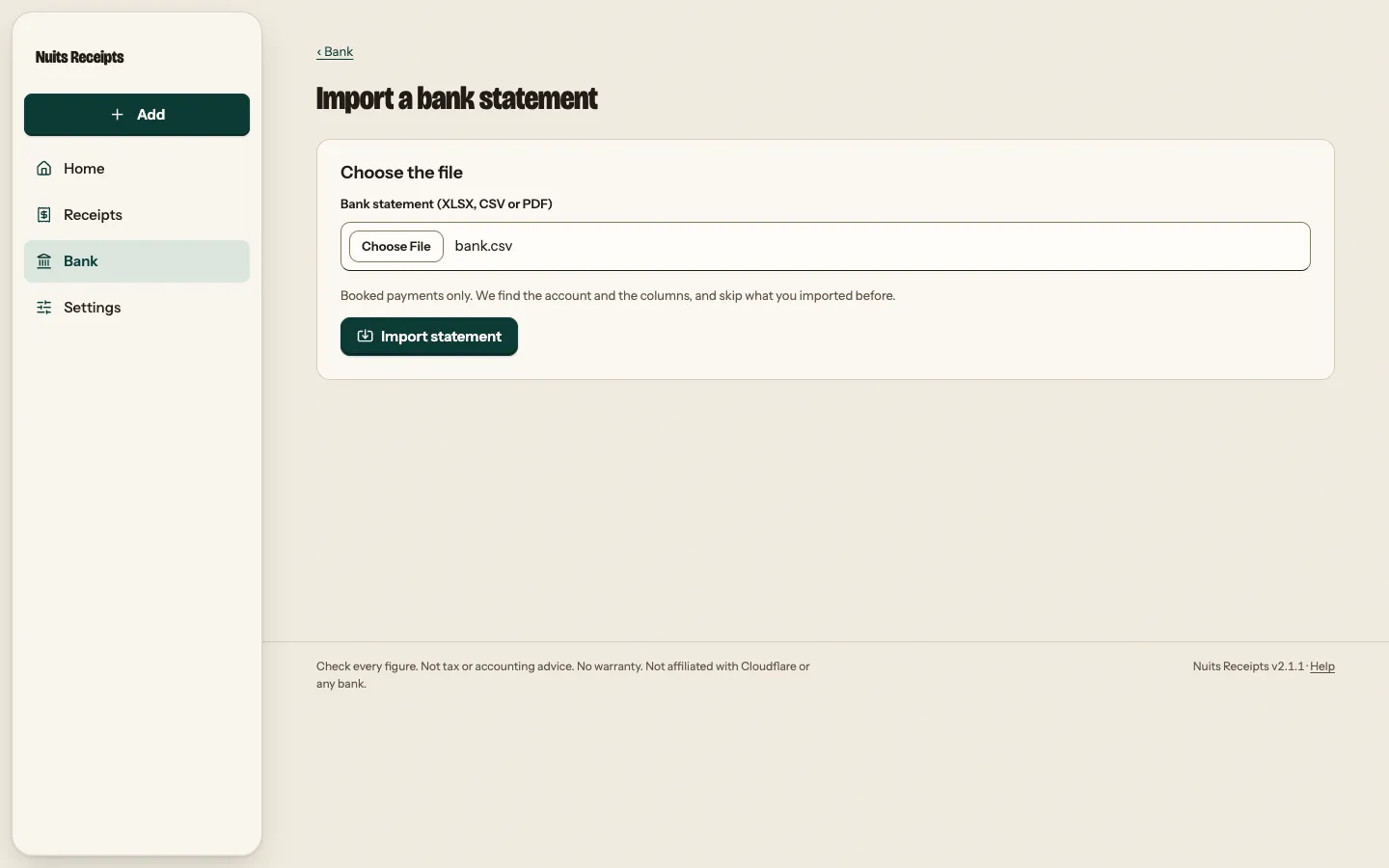
Press Import statement in the banner. The Import a bank statement page opens.
- Under Bank statement (XLSX, CSV or PDF), choose
bank.csv. - Press Import statement.
The app finds your account and reads the sample’s columns itself, so there is nothing else to fill in.
See the match
The app opens Bank for September 2026. The banner says Added 2 payments. Paid out: 1 matched, 0 not a purchase, 1 missing. with See them and Undo. Undo here would take the whole import back out.
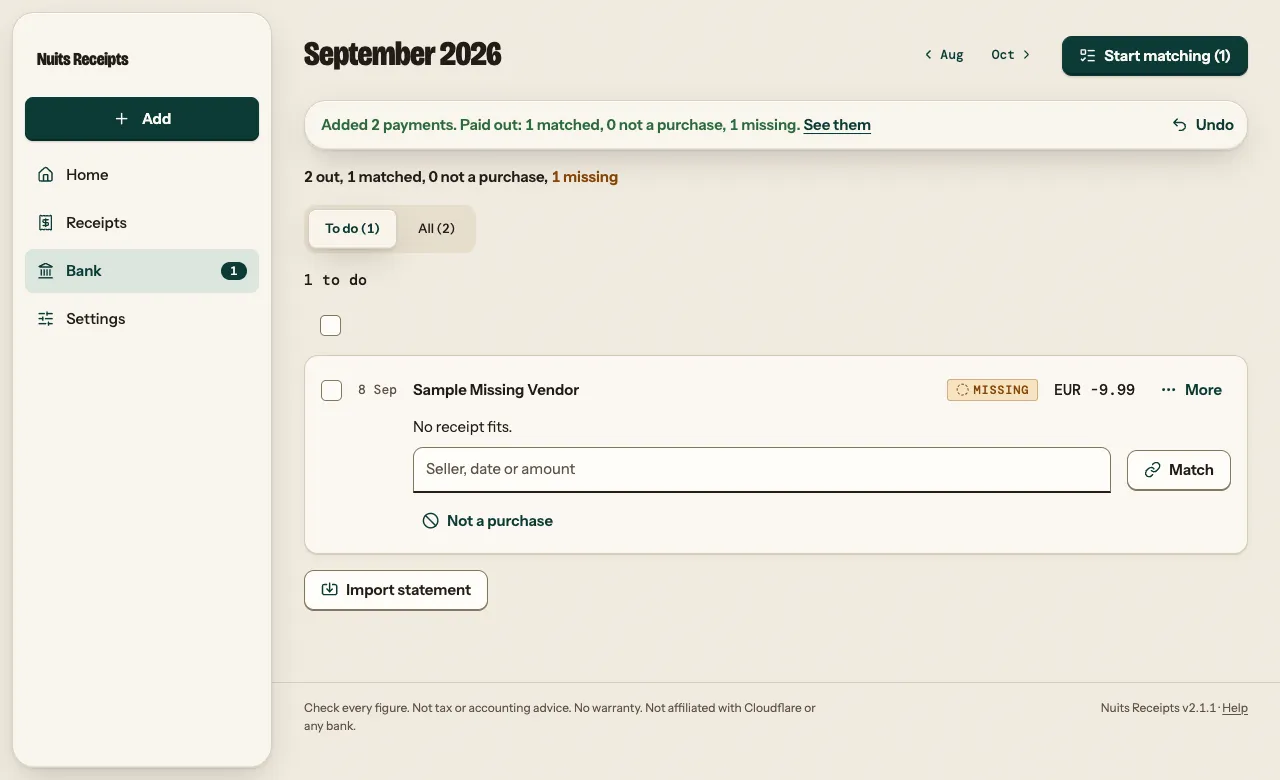
Under the month is the line “2 out, 1 matched, 0 not a purchase, 1 missing”, then To do and All. To do holds Sample Missing Vendor, marked Missing, with No receipt fits. because none of your receipts fits it. Under All, the Sample Cloud Lantern Oy payment shows Matched and a Receipt link: the app paired it with the PDF receipt by amount, date and name.
This sample payment has no receipt on purpose. Under it, press Not a purchase. The banner says Sample Missing Vendor is not a purchase, so it no longer needs a receipt. with Undo, and To do says Every payment has a receipt. with a Send September button.
Send the month
Press Send September. Home opens on September 2026. Under the search field is the month’s close, in three steps: Check says All checked, Match says All matched and Send says Ready. Below them is the Send panel, with the Spent total, Download ZIP, CSV and Did you send it?
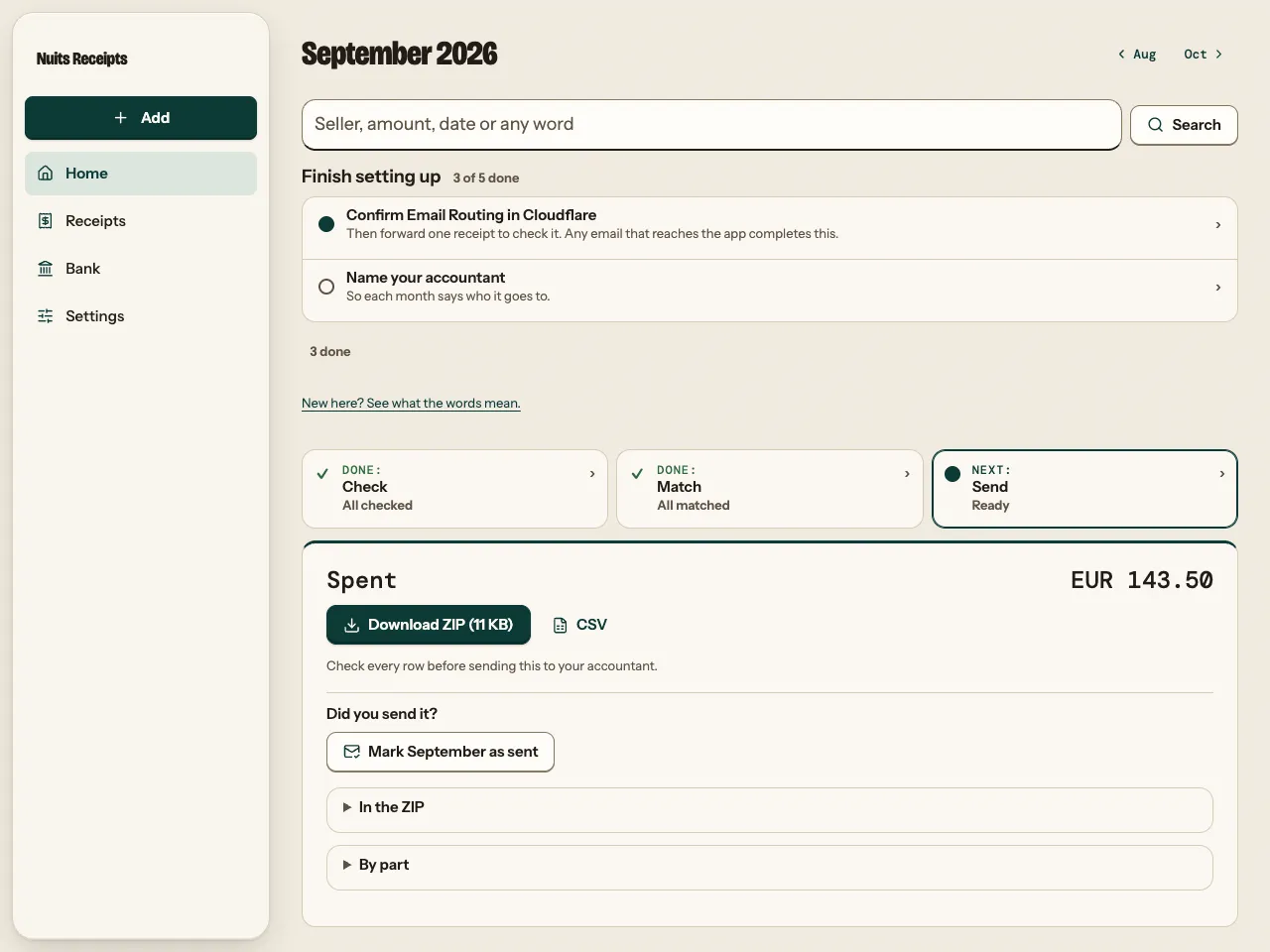
Open In the ZIP to see the files:
receipts-2026-09/
  00-index-2026-09.csv
  2026-09-04_Sample-Cloud-Lantern-Oy_EUR-125.50_690c8a.pdf
2026-09-05_Sample-Pixel-Harbor-Ltd_USD-20.00_12cf96.png- Press Download ZIP. The button also shows the ZIP’s size. Your browser saves
receipts-2026-09.zip. Open it and you find the two originals and the index spreadsheet. - In real use, this is when you send the ZIP to your accountant.
- Under Did you send it?, press Mark September as sent.
The banner says Marked September 2026 as sent. with Undo, and Send now reads Sent with today’s date. If you want the CSV on its own, CSV sits beside the ZIP button.
Find a receipt again
Everything you add stays on Home, below the month’s close, whatever month it belongs to.
- In the search field at the top of Home, type
Lanternand press Search. - The list, headed Search: Lantern, shows Sample Cloud Lantern Oy. Press its name.
The receipt opens in the app’s own viewer: beside the list on a computer, full screen on a phone.
What we did
You put a whole month through Nuits Receipts: two receipts read and checked, a bank statement imported, one payment matched to its receipt, one marked as not needing one, the month packaged and marked as sent, and a receipt found again by searching Home. If a receipt dated September changes later, Home tells you and offers just the changed files.
From here, the how-to guides cover each part of the monthly routine with your own files, starting with Add receipts and Import a bank CSV. Find any document covers Home’s folders, search words and saved searches.