Use this guide to bring a bank statement into the app so each payment out can be checked for a receipt. Nuits Receipts imports XLSX, CSV and PDF statements exactly as your bank gives them: there are presets for some layouts, other layouts are read automatically, and a column mapper remains for files neither can read. It has been tested with Holvi exports so far. Choose the file and press Import: the app finds the account and the columns itself, skips what you imported before, and asks only when it cannot tell.
Prerequisites
- An XLSX, CSV or PDF statement of booked transactions from your bank, at most 2 MiB and 5,000 rows. A PDF needs a text layer (not a scan) and at most 400 pages. No pending transactions.
- Optional: a bank account under Settings > Bank. Without one, the import creates an account named for the bank it recognises, or asks.
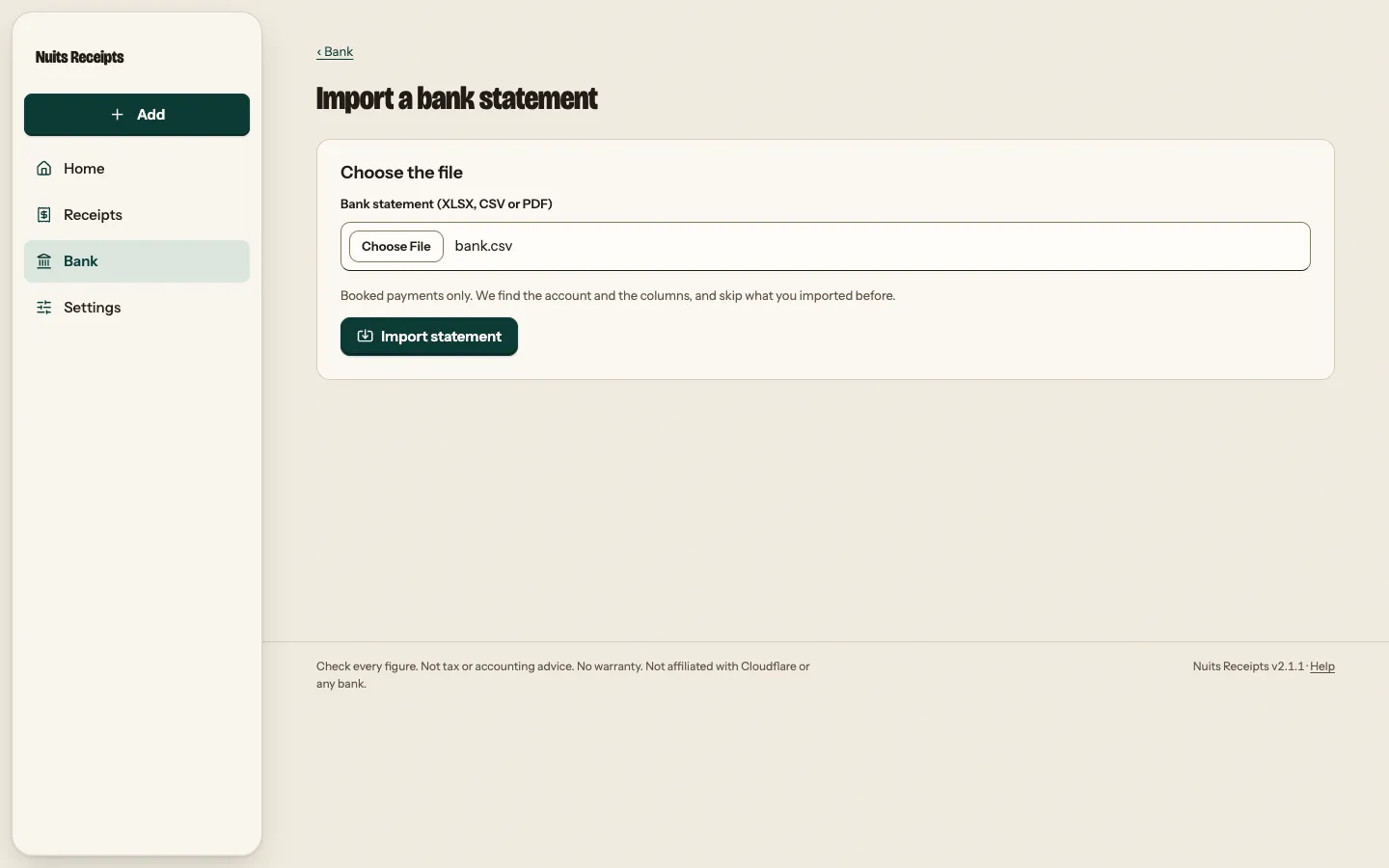
Import a statement
Open the import page
Select Import statement on Bank or on Home while the Match row says “No statement”. The page is called Import a bank statement.
Choose the file and import
Under Bank statement (XLSX, CSV or PDF), choose the file as downloaded. There is no need to convert it or remove the lines above the column names. Select Import statement.
The app picks the account: the only one you have, or the one whose bank the layout names. It picks the layout: one saved for these column names, a built-in one such as Holvi, or one it works out from the file. A layout it works out is saved, so the next file from that bank imports the same way.
Answer the question, if it asks one
If the app cannot tell which account the file belongs to, it asks Which account is this? once. Pick the account and select Import statement again. It remembers the answer for that bank.
If it cannot read the columns, or the rows have errors, the totals the file prints do not add up, or the date order is unclear, the column editor opens instead. Open The columns look wrong? Adjust how we read the file, set the layout or the columns, date format and decimal mark, and select Check again after each change. A row with an error blocks the whole import, and each message names the row and field. Then select Import N payments. Every field is described in Bank CSV import.
Check that it worked
You land on Bank for the month of the first row, with a banner such as “Added 42 payments. Paid out: 36 matched, 4 not a purchase, 2 missing.” and Undo, which removes the whole import so the same file can be imported afresh. Undo refuses, and removes nothing, once you have matched one of its payments by hand or marked one Not a purchase. The line at the top reads, for example, “42 out, 36 matched, 4 not a purchase, 2 missing”.
Payments you imported before are skipped, and the banner says “Skipped N already imported.” When some of them had no bank ID, so they could be separate payments with the same facts, it offers Import anyway, which adds them as extra payments. Importing the same file into the same account again changes nothing: the banner says “You imported this file before, so nothing changed.” A payment that looks like one in another of your accounts is imported, and the banner counts it.
Next: Match payments and receipts.
Related
- Every mapping field, format, built-in layout and dedupe rule: Bank CSV import.
- How payments are paired with receipts after import: How matching works.