Use this guide to get receipts into the app, one at a time or ten at once. Each file is read on its own, and anything that needs a fact from you waits in Receipts To do.
Prerequisites
- A deployed copy you can sign in to. See Deploy your own copy.
- Receipts as text PDFs (up to 10 MiB and 25 pages) or photos in PNG, JPEG or WebP (up to 4 MiB each).
- For email only: a receipt address with Email Routing and your sending address on the allowlist. See Set up email.
Upload receipts
Open Add
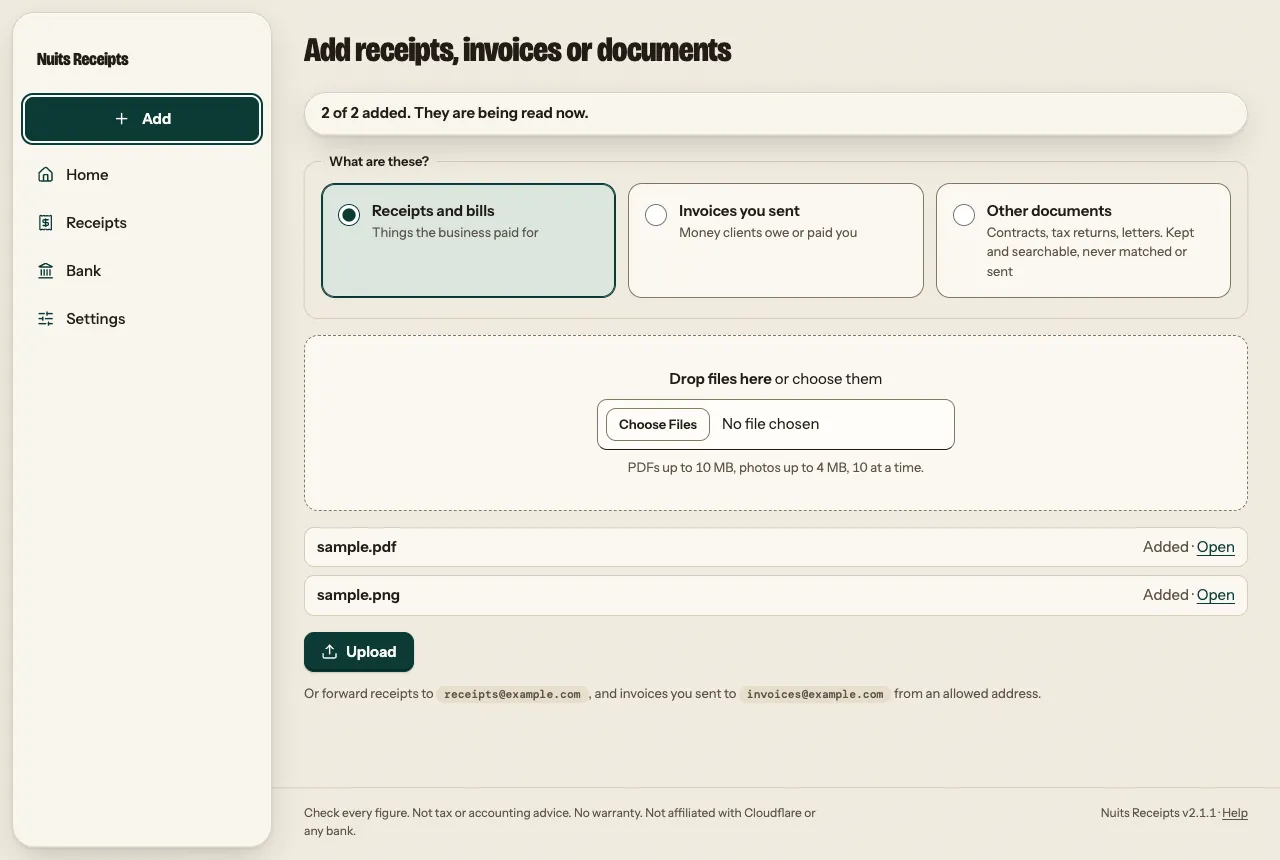
Press Add on any page. On a computer it is the first button in the sidebar. On a phone it is the round button in the middle of the tab bar. On a brand new copy, Home also shows the same form under its setup checklist.
Say what the files are
Under What are these?, keep Receipts and bills selected. Choose Invoices you sent only for sales invoices; see Keep sales invoices. Choose Other documents for a contract or a letter that is kept but never read for amounts; see Find any document.
Add the files
Drop up to 10 files on the page or choose them, then select Upload. The list under the drop area shows each file as it is added, with a link to open it. A file that is too big or of the wrong type is reported on its own and the rest still go in. One file on its own opens its page once it is added.
On Android, with the app installed, you can also share a receipt into it from another app; it opens Add with the files filled in. See Install the app.
Forward an email
Forward from an allowed address
Forward the receipt email, or have your supplier send it, to your receipt address. The Add page shows that address when it is set.
Know what becomes a receipt
Each PDF, PNG, JPEG or WebP attachment (up to 10 per email) becomes its own receipt. An email with no supported attachment is kept as a receipt itself, saved from its HTML or text body. The email is the context the reader sees, so a short forwarding note such as the supplier’s name can help.
Mail from an address that is not on your allowed senders waits at the top of Receipts To do as a New sender row, unread, until you allow or ignore the sender. Mail that fails the sender check is dropped. Mail that the app cannot prove came from you is kept, unread, with the flag Is this email genuine? The reasons are in Email and sender trust.
Check that it worked
- After a single upload you land on the receipt page. A heading such as 1 to check means it waits in Receipts To do; with no heading and a Save button, it was read with no doubts.
- Receipts in the sidebar (or the tab bar on a phone) shows a count of what waits in To do.
- On Home, the Check row counts the receipts that need you, for example “1 to check, 1 undated”. A receipt with no date counts as undated until you add one.
Uploading the exact same file again does not create a second receipt: it opens the one you already have. To handle near-duplicates, see Resolve duplicate warnings.
Next: Check and approve a receipt. For every size and type limit, see Limits.