Use this guide to clear the receipts waiting in Receipts To do. A receipt lands there when it is missing a fact approval needs, when the numbers do not add up, or when something about the source needs a look. Sales invoices past their due date wait there too. Only approved receipts can be matched to a payment and go in the month’s main folder.
Prerequisites
- At least one receipt in the app. See Add receipts.
- The original to hand, or a screen big enough to see the receipt page’s preview beside the form.
Check a receipt
Open To do
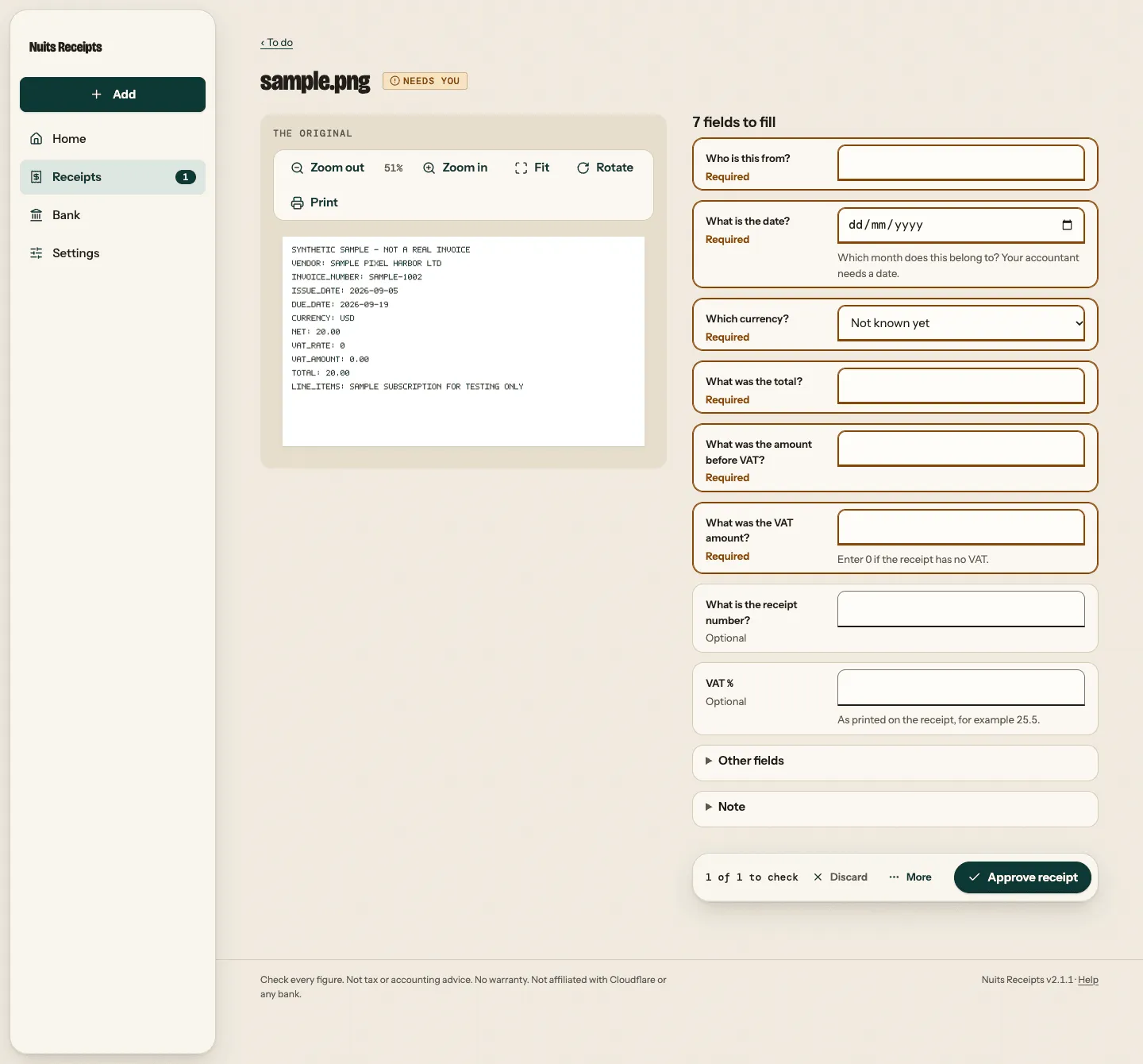
Select Receipts in the sidebar (on a phone, the tab bar at the bottom). It opens on To do, and the header says how many are waiting, for example 4 to do. The list shows undated receipts first, then the oldest, each with its amount and a Needs you stamp. From Home, the Check row’s Start checking opens the same list for that month. Select Start checking to open the first one, or select any row.
Mail from senders who are not on your list is shown first, as New sender rows. Select Allow to read that email and any others waiting from them (their later mail is read as it arrives). To refuse them, select Ignore, then Ignore and delete: their waiting mail is deleted, and what they send later is only logged.
Compare the flags with the original
The original is on the left, under The original, and the fields to fill come first on the right, under a heading such as 5 fields to fill. Each is a short question marked Required or Optional, such as What was the total? or Do the amounts add up?, with the field to fix beside it. Images show inline beside the form; for a PDF, select Open original and keep it beside the page.
What the reader found and wants you to confirm is under Already filled in, and everything else is under Other fields. Correct any field there too, including Kind (and Part, once you have more than one part).
Fill in what approval needs
Approval needs the seller, date, currency, total, before-VAT and VAT amounts. Enter
0in VAT if the receipt has no VAT. Leave an amount empty only if you truly do not know it; the receipt then cannot be approved.If your bank charged a different euro amount for a foreign-currency receipt, fill in In euros and Why under Other fields. Both are needed together.
Write the note and approve
Under Note, For your accountant starts as “Checked against the original”. Change it if you want to say more, such as why you accepted a refund. It cannot be empty when you approve. Then select Approve receipt in the bar at the bottom of the page. On a phone the bar stays above the keyboard while you type. On a computer,
aapproves andsskips.Go to the next one
The bar shows where you are, for example 1 of 4 to check. Approve receipt opens the next receipt in the same To do, and Skip leaves this one and opens the next. After the last one you are back on the list, which says All checked and offers the month’s next step, such as Import statement.
Set a receipt aside
If something is not a business receipt, select Discard on the receipt page or tick its row and select Discard in the bar. It happens at once, with no question. The receipt leaves To do, totals, matching and the month’s package, but its file is kept. If it was matched to a payment, the match is removed too.
The banner offers Undo, which brings the receipt and its match back. Later, find it on Home: open More filters above the list, select Discarded, open the receipt and select Restore.
Approve several at once
Every row on To do has a tick box, on every screen size. The bar that shows when you tick rows has two actions: Approve and Discard.
When you have checked several against their originals, tick them on To do and select Approve in the bar. It asks first, with one Reason for all of them, starting as “Checked against the original”. Receipts still missing a fact approval needs are skipped and stay in To do. The approved rows leave the list, the next ones move up, and the banner offers Undo. Shift-click ticks a range, and j, k and x move and tick from the keyboard. See Select several and Keyboard shortcuts.
Have it read again
Select More > Read again. The reader runs on the saved original again; anything you typed in is kept and wins over the new reading. Flags such as Try reading it again. and Check the details, or read it again. show the same button inside the flag.
If the PDF has no readable text (usually a scan), select More > Upload a copy and upload a photo of it, or select Add and upload the photo there. That adds a new receipt; mark the old one as its duplicate afterwards. See Resolve duplicate warnings.
An email the app could not verify
An email flagged Is this email genuine? was kept but not read. Download it with More > Download original and check that it is genuine. If it is, select Read it. If it is not, leave it unapproved: it stays out of the month’s main folder. If reading it does not work, see Troubleshoot.
Check that it worked
- The banner names the receipt, such as Approved Sample Coffee Corner., with Undo, and the count on Receipts in the sidebar (or the tab bar on a phone) goes down. When nothing is left, To do says All checked.
- The approved receipt loses its Needs you stamp, or shows Matched once a bank payment is linked. Its button is now Save.
- On Home, the Check row shows Done when nothing dated in that month needs you.
Saving a ready receipt checks it again. If the change raises a new problem, it goes back to To do with “Saved. It needs another look, so it moved back to To do.” Saving changes to a receipt also removes its link to a bank payment, then automatic matching runs again. Check Bank afterwards. See Match payments and receipts.
Related
- Every flag and what raises it: Receipt fields and flags.
- Why rows get flagged and how VAT arithmetic is checked: How reading works.
- Filing future receipts from a seller automatically: Sort costs with vendor rules.