Use this guide to make sure every payment out in a month has a receipt, or a reason not to. The app matches payments automatically across every imported month and marks obvious non-purchases; this guide covers the rest.
Prerequisites
- A bank statement imported for the month. See Import a bank CSV.
- The receipts for that month in the app. Receipts still in Receipts To do are matched too and show Needs you next to the match until you approve them. See Check and approve a receipt.
Match the missing payments
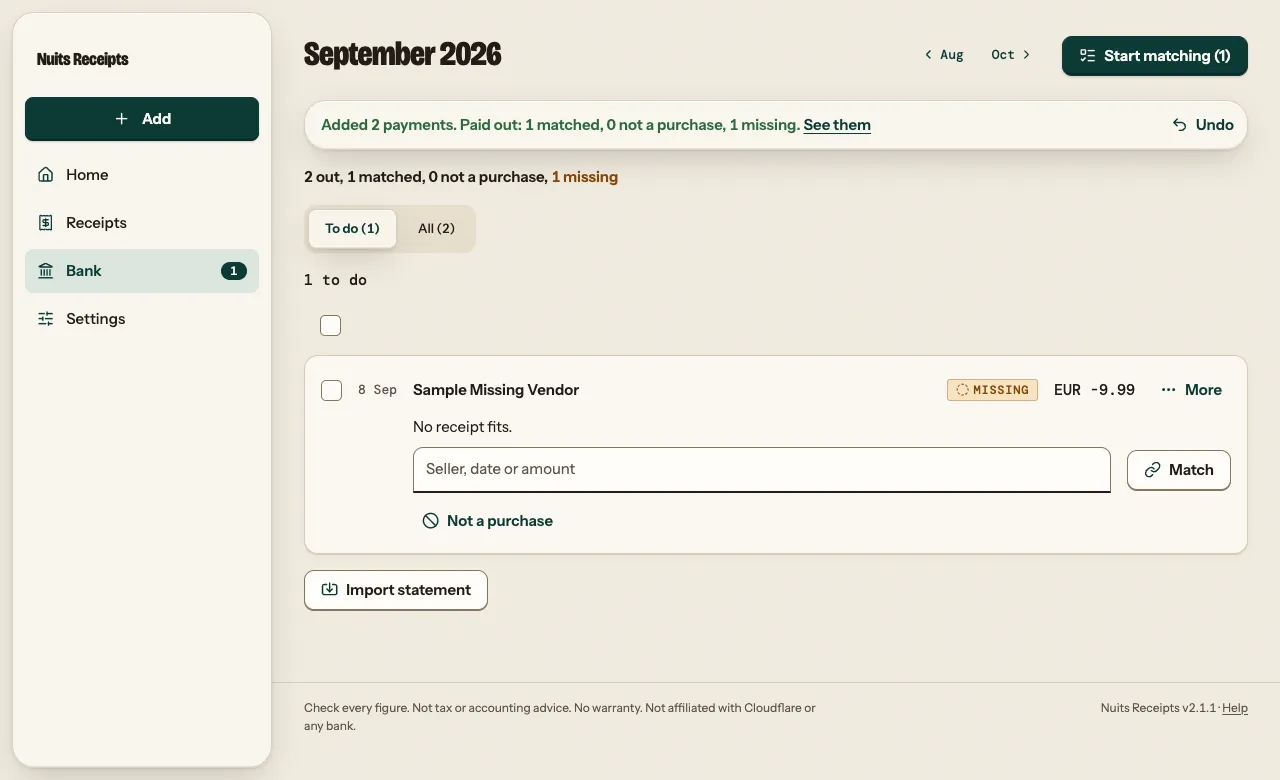
Open To do on Bank
Select Bank in the sidebar (on a phone, the tab bar at the bottom) and pick the month. It opens on To do: money out with no receipt, oldest first, under a count such as 4 to do. All shows every payment in the month. The Match row on Home links here too when it says, for example, “2 missing”. Select Start matching at the top to jump to the first open payment, or work down the list.
Compare the likely receipt
When a receipt looks like the payment, it is shown under it as Likely, with the seller, date and amount. A small table puts the Bank and Receipt values for Name, Date and Amount side by side, and the Compared column says what differs.
Match it, or pick another
If it is the right receipt, select Match. If the pair does not fit the usual rules (for example a card payment in another currency, or a payment booked long after the receipt date), a line under the table says why. Read it before you match.
If it is the wrong receipt, open the payment’s More, and under Pick another receipt type the seller, date or amount in the box. Choose one and select Match. With no likely receipt, the payment says “No receipt fits.” and shows the same box under it. You can also paste a receipt ID there.
Match the rest at once
When several payments have an exact likely receipt, Will match N payments above the list shows each pair and why. Select Match all N likely (or Match the likely one) to match them together.
A matched payment leaves To do, and the next one moves up. On All it shows Matched with a Receipt link. The banner offers Undo.
You can also match from the receipt side. A receipt page shows Payment? when an unmatched payment fits it; select Match.
If no receipt exists yet, the payment says “No receipt found yet.” Its More has Add a receipt, which opens Add. Upload the receipt there; it is matched as soon as it is read.
Work on several payments at once
Every payment row on Bank has a tick box, on every screen size. Tick the payments, then pick an action in the bar that shows the count:
| Action | What it does |
|---|---|
| Match | Matches each ticked payment to its exact likely receipt. Payments without one are skipped. |
| Not a purchase | Marks each one as needing no receipt. |
| Needs a receipt | Turns Not a purchase back. |
| Unmatch | Removes each one’s match. |
The banner says how many changed and how many were skipped, and offers Undo. Shift-click ticks a range, and Select all N payments ticks every payment in the view and month. Own-account transfer rows have no tick box. See Select several and Keyboard shortcuts.
Mark payments that need no receipt
Some money out has no receipt: tax payments, loan repayments, money you pay yourself. Many are marked for you on import, with a label such as Tax, Bank fee or Cash next to Not a purchase. For the rest, select Not a purchase under the payment. It leaves To do, no longer counts as missing, and the banner offers Undo.
To reverse it, find the payment under All, open its More and select Needs a receipt.
For money moved between two of your own accounts, pair the two sides instead, so both are explained together. See Pair an own-account transfer.
Undo a match
Under All, open the matched payment’s More and select Unmatch. The payment counts as missing again and goes back to To do.
Check that it worked
- The line at the top of Bank reads, for example, “12 out, 12 matched, 0 missing”, and To do says Every payment has a receipt. with the month’s next step, such as Start checking or Send September.
- On Home, the Match row shows Done.
- If other months still have gaps, Bank links them under “Also missing”, for example “Also missing: August (2)”.
A seller that appears on your bank statement under a different name (for example through a payment processor) may never match automatically. A vendor rule with Bank name fixes that; see Sort costs with vendor rules.
Related
- When a match is automatic, when it is only suggested, and the date and amount windows: How matching works.
- How a bank match sets the euro amount: Currencies and reference rates.
- Money in matched to invoices you sent: Keep sales invoices.