Use this guide when you need a document again: last March’s train ticket, every invoice to one client, or the package your accountant got in June. Home holds every finance document in the app: receipts, sales invoices, bank statements, other finance documents and the month packages you sent.
Prerequisites
- Nuits Receipts v2.0.0 or later. If you upgraded from an older release, see Upgrade your deployment to make older files searchable by their words.
How Home is laid out
From the top, Home shows a search field, this month’s close as three steps (Check, Match and Send, with the setup checklist while it is unfinished), and then the archive.
- On a computer (1100 pixels wide or more): the folders on the left, the list in the middle, and the opened document in a preview pane on the right.
- On a phone or a narrow window: the list, then Folders below it. An opened document takes the whole screen, with Back to the list.
Open a folder
Folders build themselves from your data, so there is nothing to file and nothing can be misfiled. Select one in the drawer:
| Folder | Shows |
|---|---|
| Everything | Every document, newest first. |
| Starred | Documents you starred. |
| Recently opened | The last 50 documents you opened. |
| Saved searches | The searches you saved, one folder each. |
| A year, such as 2026 | Every document dated in that year. Open the year’s tab to see its months. |
| Kinds | Receipts, sales invoices, other documents, bank statements and month packages. |
| Sellers and Clients | Every document from one seller, or to one client. |
| Tags | Every document with one tag. |
Each folder has its own address, so you can bookmark it: /?in=year:2026, /?in=vendor:Hetzner, /?in=client:<name>, /?in=kind:statement, /?in=tag:travel or /?in=starred.
A year, seller or client folder starts with an overview: the total spent (or invoiced, for a client) in EUR, the number of files, the files without a euro amount, the payments missing a receipt, and a bar for each of the 12 months.
Search
Type in the field at the top of Home, Seller, amount, date or any word, and press Enter. Search looks at the details the app read (seller, client, invoice number, file name, sender, subject, amounts and dates) and at the words inside PDFs. A search runs inside the folder you have open; open Everything to search all of it.
Words are matched as you typed them, and every word must appear. Some words are read as filters instead:
| You type | Finds |
|---|---|
hetzner |
Documents with that word in their details or inside the PDF. |
"late fee" |
That exact phrase. |
42.50, 42,50 or €42.50 |
Documents for exactly that amount, in the document’s own currency. A whole number needs a currency sign (€42); without one, 42 is searched as a word. |
>100, <50, >=100 |
Amounts above or below the number. |
100-200 |
Amounts from 100 to 200. |
2026 |
Documents dated in that year. |
2026-03, march 2026, mar 2026 |
Documents dated in that month. A month name alone (march) finds that month in every year. |
2026-03-31 or 31.3.2026 |
Documents dated on that day. |
kind:sales |
One kind: kind:receipt, kind:sales (or kind:invoice), kind:statement, kind:package or kind:other. |
tag:travel |
Documents with that tag. |
Filters combine, so hetzner 42.50 march 2026 finds one receipt.
Use quick find from any page
Open the box
Press
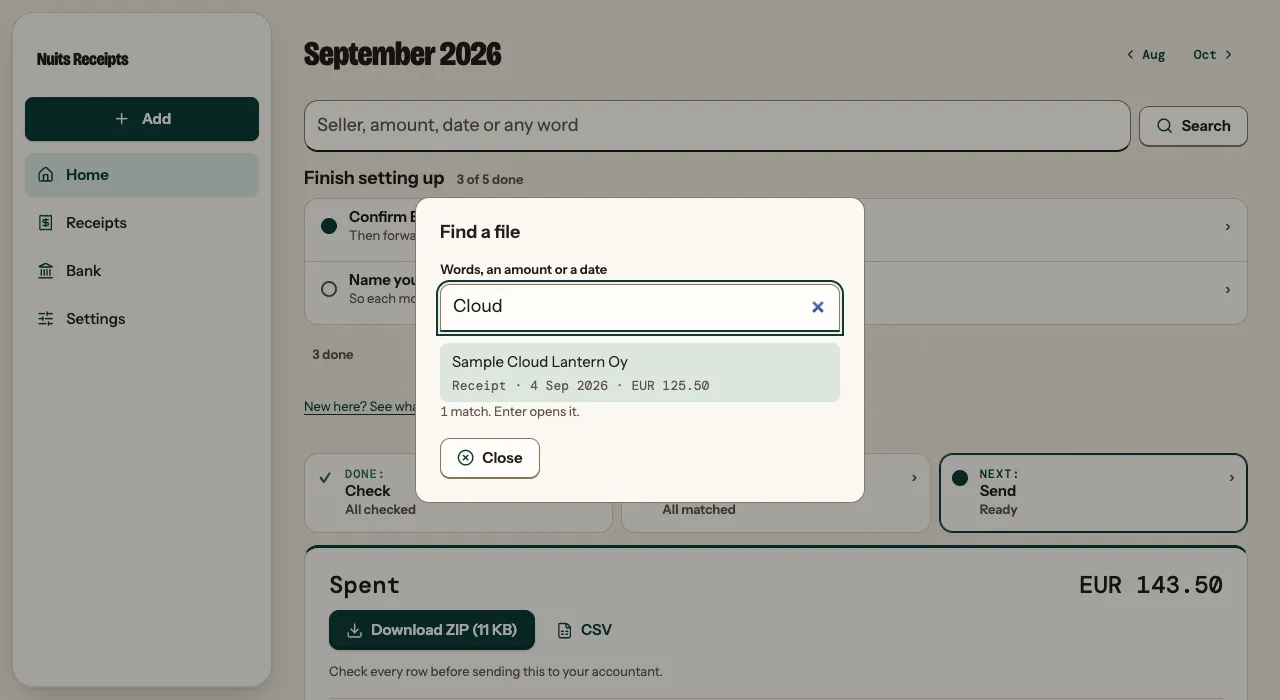
Cmd+Kon a Mac, orCtrl+Kelsewhere./focuses a page’s own search field, or opens quick find on a page without one.Type
The box, Find a file, lists the first matches as you type. It takes the same words and filters as Home’s search.
Open a match
Use the arrow keys to pick one and press Enter. Pressing Enter with no match picked runs the search on Home.
Save a search
Run a search, open Save search under the field, give it a name, and select Save. It appears under Saved searches in the drawer and opens the same folder and words every time. Use Remove beside it to delete it.
Star, tag and add a note
Open a document from Home’s list. The preview (beside the list on a computer, the whole screen on a phone) has:
- Star (or Unstar). Starred documents are in the Starred folder.
- Add a tag, a short word such as
travel, then Add. Each tag becomes a folder under Tags. The × beside a tag takes it off. - Note, for anything you want to remember about the document, then Save note.
Starring and tag changes happen at once, and the banner offers Undo.
Work on several receipts at once
In Home’s list, each receipt and sales invoice has a tick box, on every screen size. Bank statements, other documents and month packages have none. Tick rows, then pick an action in the bar that shows the count:
- Discard sets them aside, with Undo in the banner.
- Read again runs the reader on their originals again.
- Move to invoices (Move to receipts on a list of sales invoices) changes their kind. It asks first, because moving clears the client, VAT details, paid date, your corrections and any match.
Under More filters, Discarded shows only discarded receipts, and the bar there has one action, Restore. Read again and Move have no Undo. See Select several for the limits, and Keyboard shortcuts for the keys.
Download a folder
Open a folder, or run a search, and select Download folder. You get a ZIP of the receipts, invoices and other documents it shows, in Year/Month folders, with 00-index.csv listing every file. Bank statements, month packages and mail waiting for a sender decision are left out.
A ZIP holds up to 900 files. For a bigger folder, open a year or a month, or narrow the search, and download that.
Keep other finance documents
To keep a document that is not a receipt or a sales invoice, such as a contract or a letter from the tax office, press Add and choose Other documents under “What are these?”. Choose the files (PDFs or photos) and select Upload. Each is named after its file and has no date; give it a title and a date on its page.
These documents are kept, dated and searchable. They are never read for amounts, matched to payments, put in a month package or counted in any total.
Find a month you sent
When you mark a month as sent, the app keeps a copy of what your accountant got. Open the month’s package under Kinds, Month packages (or search kind:package) and select Download the ZIP as sent. A month sent before v2.0.0 has no such copy; its page offers Download the month as it is now instead.
Check it worked
- Search for a seller you know. The list shows only their documents.
- Open one. On a computer it shows in the preview pane; on a phone it fills the screen.
- Press
Cmd+KorCtrl+Kon Bank and type the same seller. The box lists the same documents.
Related
- PDF viewer for the viewer’s buttons and keys.
- App pages for every Home address and parameter.
- Send the month to your accountant for the month package.
- What it does not do for what keeping documents here does and does not mean.