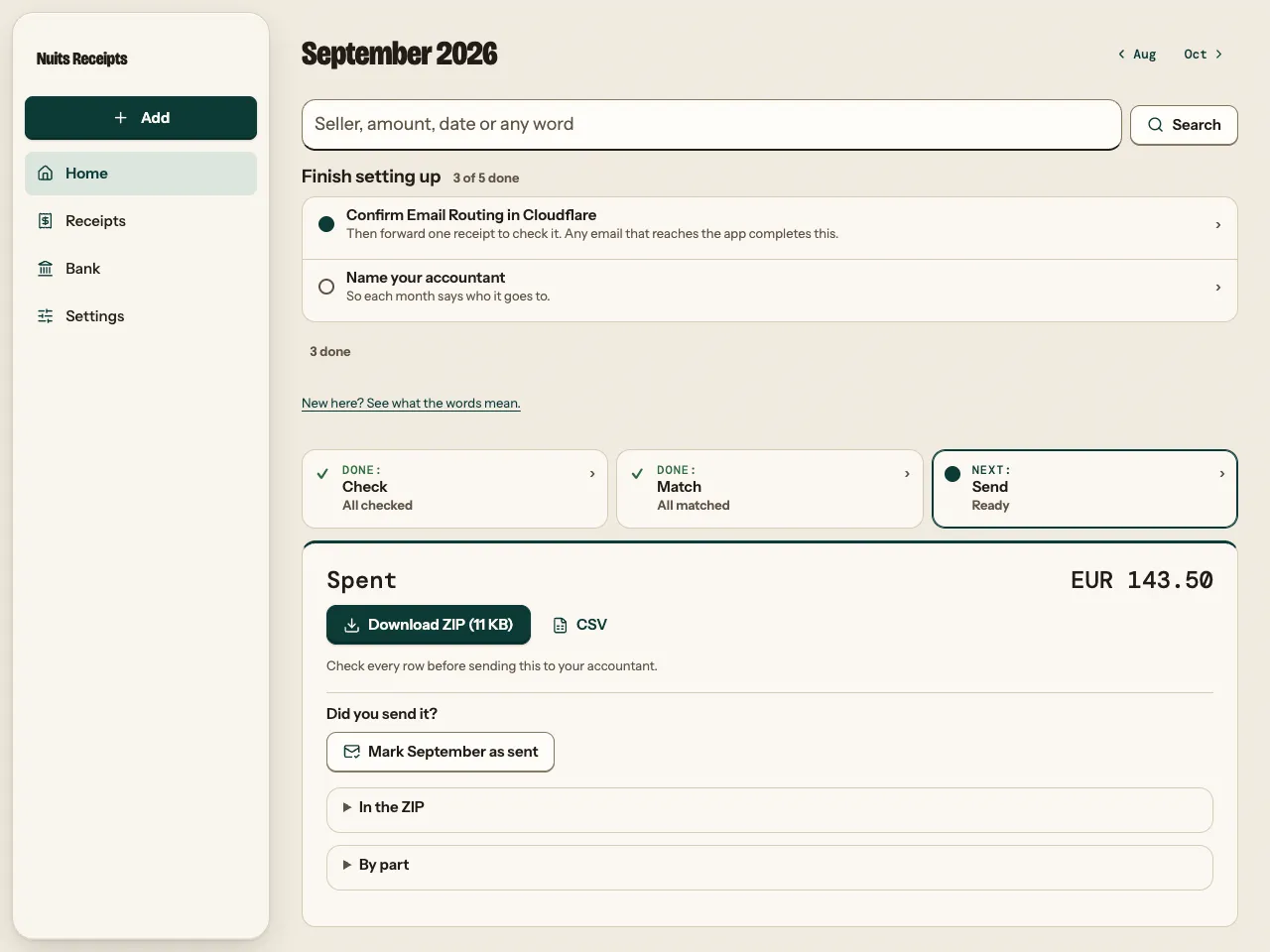
Use this guide at the end of each month. Home walks you through three rows: Check, Match and Send. The last one builds a ZIP with every original receipt, named by date and seller, plus an index spreadsheet. The app prepares the files; your accountant decides how they are booked.
Prerequisites
- Receipts for the month added and reviewed. See Check and approve a receipt.
- The month’s bank statement imported and matched. See Match payments and receipts. You can send without this, but the package then says it is not ready.
Send the month
Open the month
Select Home in the sidebar (on a phone, the tab bar at the bottom), or Send October on Bank once every payment has a receipt. The month is the page title; use ‹ and › beside it to pick another month. The old
/monthaddress redirects to Home.Finish the first two rows
Each row has a short status, and one button below them offers the next step. Check shows what still needs you, for example “1 to check, 1 undated”, with Start checking. Receipts with no date belong to no month until you add one; they wait in every month’s To do.
Match shows “No statement” (with Import statement) or how many payments are missing a receipt (with Start matching). When Check says “All checked” and Match says “All matched”, both are marked Done and Send shows Ready.
Download the ZIP
Check the Spent total, and open In the ZIP for the file list or By part for the totals, then select Download ZIP. The button shows the size for smaller months. Under the buttons the page says: “Check every row before sending this to your accountant.”
If you only need the spreadsheet, select CSV instead.
Send the folder
Unzip it (Mac: double-click; Windows: Extract all). You get a folder such as
receipts-2026-10. Send that folder to your accountant. For a shared OneDrive or SharePoint folder, upload the folder itself (Upload > Folder), not the ZIP: OneDrive’s web page does not unzip.Mark it as sent
Under “Did you send it?”, select Mark October as sent (it names your month). The banner says, for example, “Marked October 2026 as sent.” with Undo, and Send shows the date. The app records which receipts you sent, so it can tell you if anything changes later.
Send a month that is not ready
If receipts still need a check, no bank statement is imported, or payments have no receipt, Send shows Not ready. You can still send what is there: open Download anyway.
- Download anyway puts unchecked receipts, and emails held for review, in a
check-thesefolder, marked as needing review in the index. - Tick Add N undated receipts to add undated receipts to
check-theseas well. - Payments with no receipt are listed in a separate spreadsheet in the package, so the gap is visible.
The mark-as-sent button, the CSV link, In the ZIP and By part are in the same fold. Tell your accountant which rows still need checking. Check flagged rows first; your accountant decides how these are booked.
Send changes after sending
If a receipt dated in the month is added, corrected or removed after you marked it as sent, Send shows Changed and the page says what changed, for example “Changed since you sent it on 3 Nov: 1 added and 1 corrected.”
Download only what changed
Select Download changes. The button says how many files, and the ZIP is named like
receipts-2026-10-changes.zipwith only the new and corrected receipts. Or select Download all for a full package.Send and mark it again
Send the files, then select the mark-as-sent button again.
A changes ZIP has its own index spreadsheet, named like 00-index-2026-10-changes.csv, that lists only the changed files. It does not replace the full 00-index-2026-10.csv when unzipped over the earlier folder; your accountant adds its rows to the full index. A corrected receipt can get a new file name, so the old file stays in their folder unless they remove it.
Check that it worked
- A banner says “Marked October 2026 as sent.”
- Send shows Sent with the date, with Download again and a link on to the next month.
Limits and options
- One package holds up to 900 files. A bigger month says “This month is too big for one package (N files, 900 max).”; download the CSV and fetch the originals from the app.
- A line of your own under the download button comes from Note under the month download in Settings > Sending. See Change settings in the app.
- To upload the files straight to a OneDrive folder instead of downloading, see Upload the month to OneDrive. An upload marks the month as sent when it finishes.
Related
- What is in the ZIP and how files are named: Month package.
- Every column of the CSV: Export CSV.
- What your accountant should do with it: Open a month package.